Napkin AI Complete Tutorial: How I Use This Free AI Tool to Turn Text Into Stunning Visuals in Seconds
In this complete Napkin AI tutorial, I'll walk you through everything you need to know about this game-changing AI design tool from creating your first napkin to exporting professional visuals for Instagram, presentations, and PDFs.
By Sorav Jain: Founder, echoVME Digital & Digital Scholar | AI Digital Marketing Consultant & Trainer.
Every week, I sit with my team at echoVME Digital and review content that has to go out for our 300+ client brands. And every week, the same bottleneck shows up: the writing is ready long before the visual is. Someone has to open Canva, pick a template, fight with alignment, and burn 30 to 40 minutes turning three paragraphs into one clean diagram.
That bottleneck is exactly why I sat down, recorded a full walkthrough on my YouTube channel, and I am now turning it into this written guide. If you would rather watch me build visuals live, the original tutorial is available on YouTube:
In this guide, I am going to teach Napkin AI the same way I teach inside Digital Scholar classrooms, not as a list of buttons to click, but as a workflow you can plug into your content calendar from tomorrow morning. By the end, you will know exactly how I use Napkin AI for client decks, LinkedIn carousels, training material, and even the diagrams inside our internal SOPs.
Table of Contents
What Is Napkin AI, and Why Should a Marketer Care?
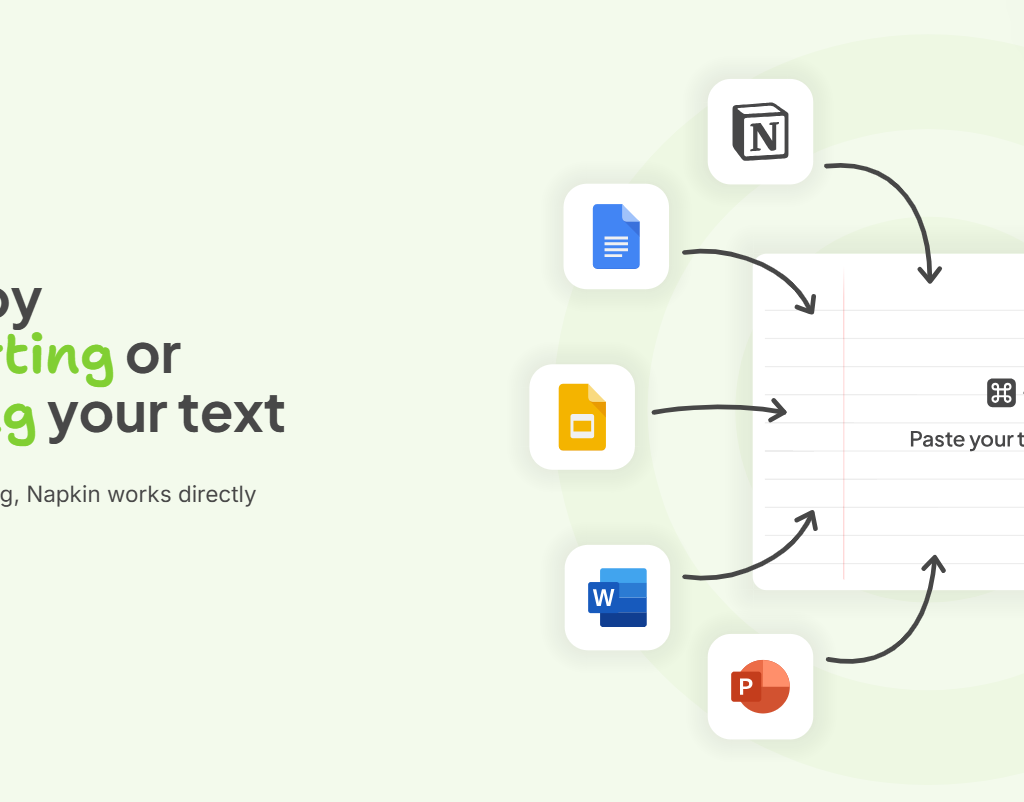
Napkin AI is a free, web-based tool that converts plain text into visuals: flowcharts, mind maps, comparison diagrams, timelines, and process illustrations. You type or paste your content, highlight the part you want visualised, and Napkin generates several diagram options built directly from your words. No design software, no drag-and-drop grid, no hiring a designer for a one-slide explainer.
Here is why this matters more in 2026 than it did even a year ago. Attention on every platform like LinkedIn, Instagram, YouTube Shorts, even Google’s own search results, is shifting toward content that can be scanned in under three seconds.
A wall of text loses that battle every time. A clean diagram wins it. I have said this on stage at multiple marketing summits: the brands winning organic reach right now are not the ones writing more, they are the ones visualising better.
“AI does not reward speed. It rewards clarity, consistency, and context.” This is something I tell every batch at Digital Scholar, and Napkin AI is one of the clearest examples of that idea in action.
For an agency like echoVME, this is not a novelty tool; it is a time-recovery tool. We bill for strategy and execution, not for hours lost inside a design grid. Anything that takes a repetitive visual task from 30 minutes down to 3 goes straight into our SOPs, and Napkin AI has earned that spot.
Before You Start: What Napkin AI Is Good At (and Where It Is Not the Right Tool)
Where Napkin AI wins
Turning long-form text (a blog post, a script, a strategy doc) into a structured visual in under a minute
Process flows and frameworks the exact kind of diagrams I use to teach SEO funnels, campaign structures, and customer journeys
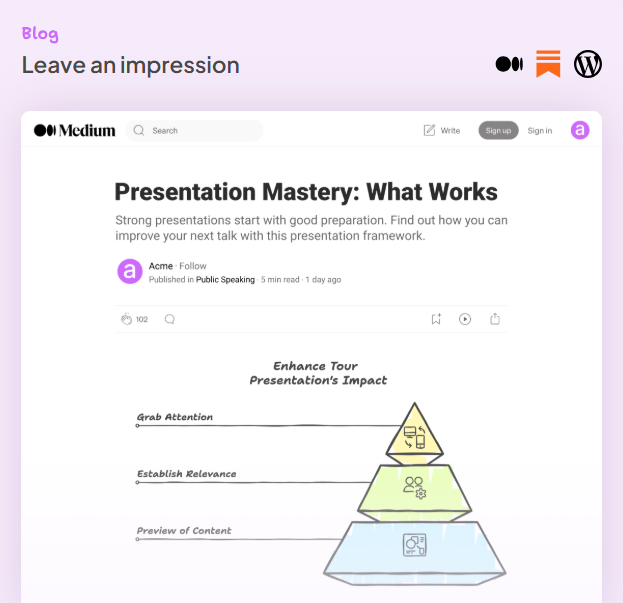
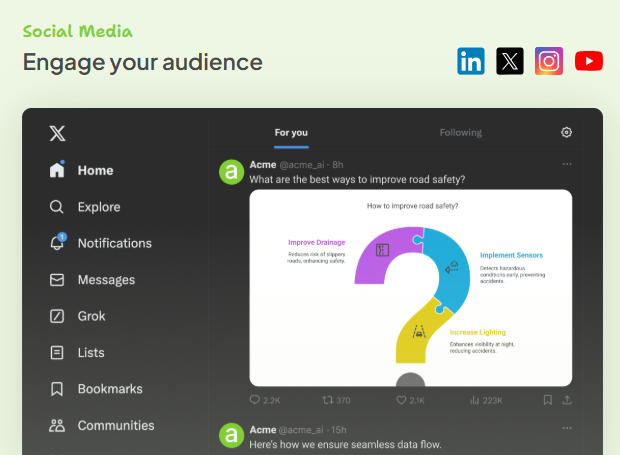
Quick LinkedIn carousel concepts and YouTube thumbnail-style explainer graphics
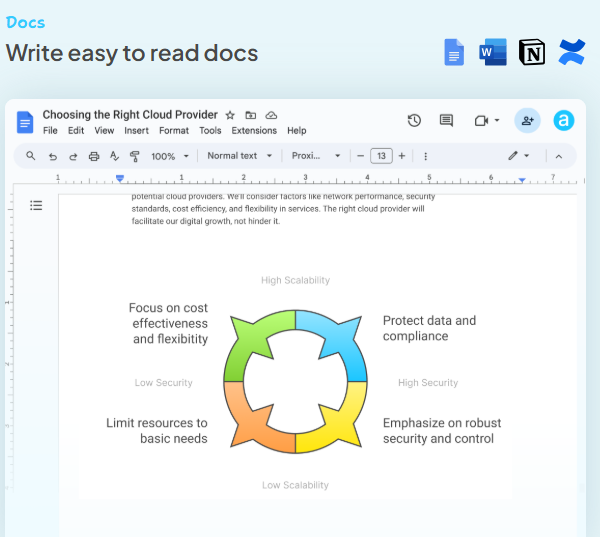
Internal documentation: SOPs, onboarding decks, training material for new hires at an agency or institute
Multilingual visual generation: Napkin can produce visuals that match your text in 60-plus languages, which matters if you are creating content for Tier 2 and Tier 3 India audiences alongside English
Where I still reach for something else
Pixel-perfect brand design with strict typography and spacing rules that is still a job for Canva, Figma, or a designer following your brand book
Highly custom illustrations or character-based artwork. Napkin is built for diagrams and structured visuals, not freehand creative art
Anything that needs to embed live data or update Napkin visuals automatically is a snapshot of the text you gave it, not a connected dashboard
Use Napkin AI for the 80 percent of visuals that simply need to be clear and fast. Save your design team’s time for the 20 percent that needs to be a brand showpiece.
The Complete Napkin AI Tutorial: Step by Step
This is the exact workflow I walk through in the video tutorial, broken down the way I would explain it to a Digital Scholar batch on day one of an AI tools module.
Step 1: Create Your Free Account
Go to napkin.ai and click “Get Napkin for Free” in the top right corner.
Sign up using your Google account for the fastest setup, or use an email and password.
Account creation currently works only on desktop, not on mobile or tablet, so do this from your laptop.
Once you are in, you will land on a blank workspace; this is your “napkin,” the digital equivalent of sketching an idea on the back of a napkin, which is exactly where the product gets its name.
Step 2: Get Your Text Into Napkin
You have two starting points, and I use both depending on the project:
Paste your own content. If you already have a blog post, a script, or a client brief written, copy it straight in. This is what I do 80 percent of the time; the content is already approved, and I just need it visualised.
Let Napkin draft it for you. Type a short prompt or topic and Napkin’s generative AI will write a sample document for you to edit. This is useful when I am brainstorming a new framework on the fly during a client call.
Step 3: Generate Your First Visual
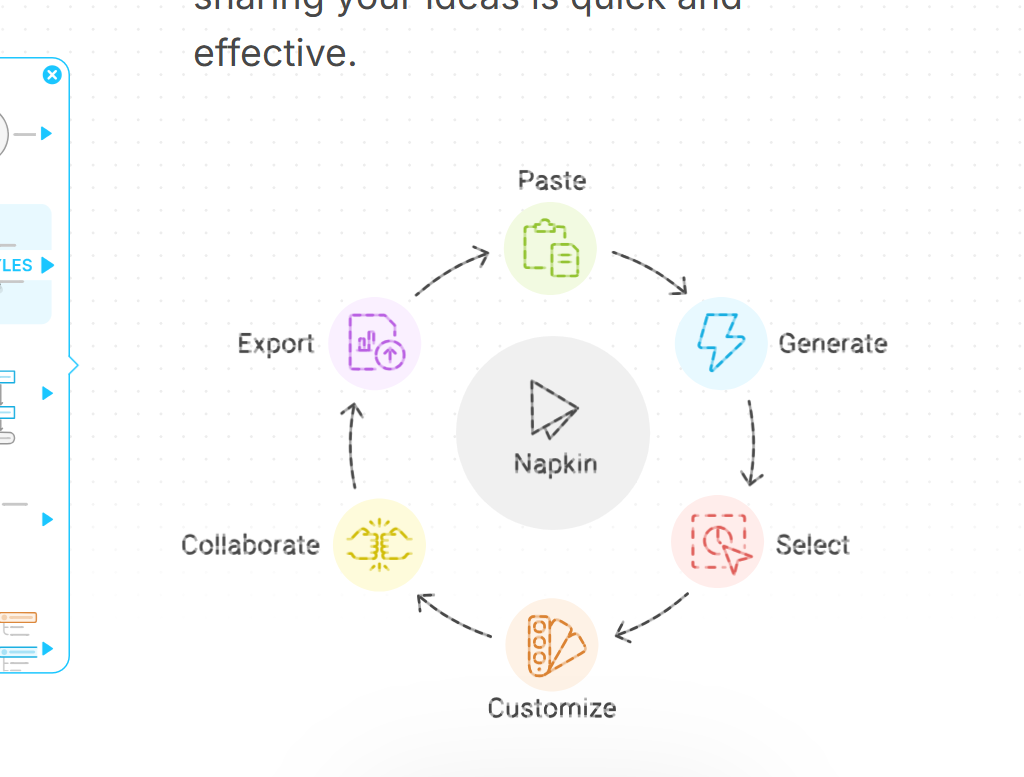
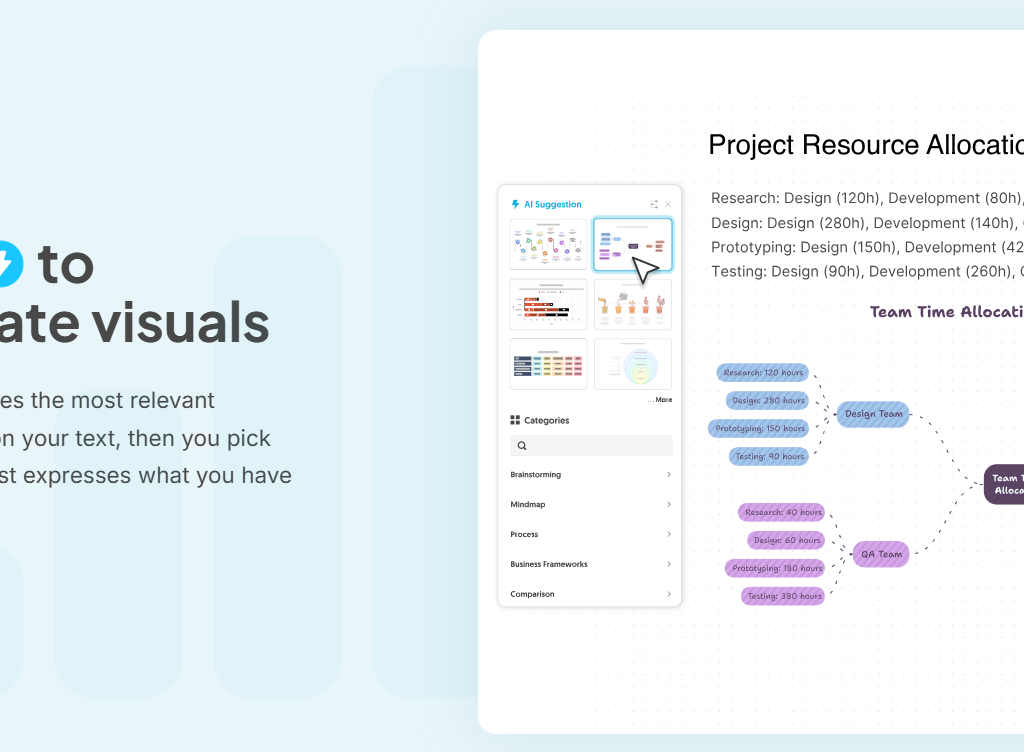
Highlight the section of text you want to turn into a diagram: a paragraph, a list, or a full section.
A small spark icon will appear next to the highlighted text. Click it.
Napkin analyses the text and offers you a set of diagram options like flowcharts, comparison grids, cycles, timelines, or mind maps, depending on the structure of your content.
Select the visual that best represents your idea. You can always regenerate if the first set of options does not fit.
This is the step that genuinely changes a content workflow. The AI is not guessing at a generic template; it is reading the relationship between your ideas (sequence, comparison, hierarchy) and choosing a diagram type that matches that logic.
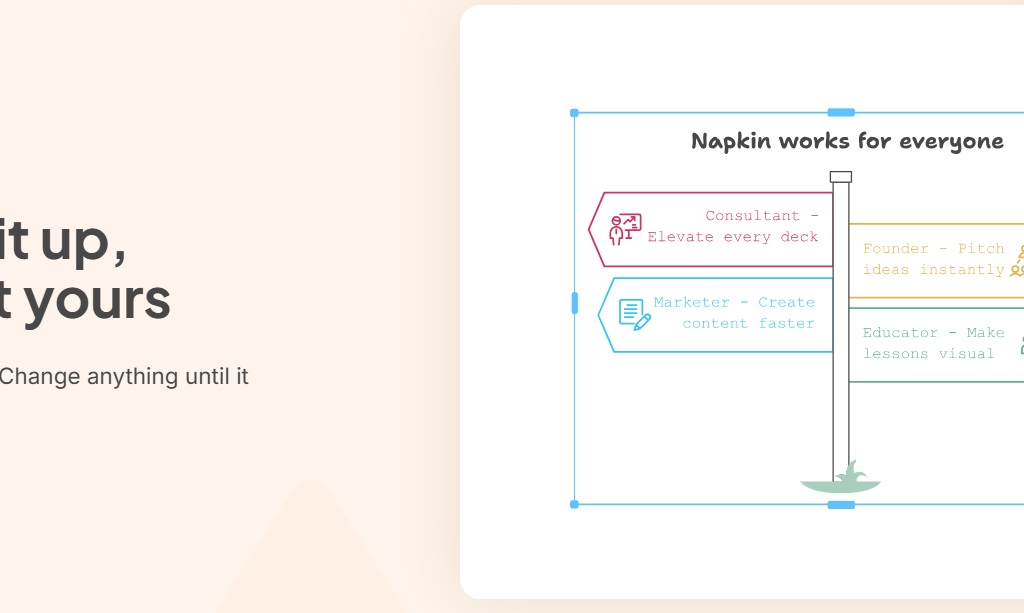
Step 4: Customize the Visual to Match Your Brand
A generic diagram is a missed branding opportunity. Before you export anything, spend two minutes here:
Style and colour: Choose from formal or casual visual styles, and apply your brand colours. Napkin can also auto-extract a colour palette from an uploaded reference image, which is a fast way to stay on-brand without manually entering hex codes.
Icons: Every icon in the diagram is editable. Use the suggestions panel if the default icon does not fit, or use Spark Search to find a specific icon — for example, searching “car” if your diagram is about a logistics or mobility brand.
Borders and layout: Add borders to frame the visual cleanly, and adjust font, size, alignment, and text style directly inside the diagram.
Sketch and image tools: Use the Sketch feature to hand-annotate or highlight a specific point, or insert your own image into the visual when a custom photo strengthens the message.
Step 5: Export in the Right Format
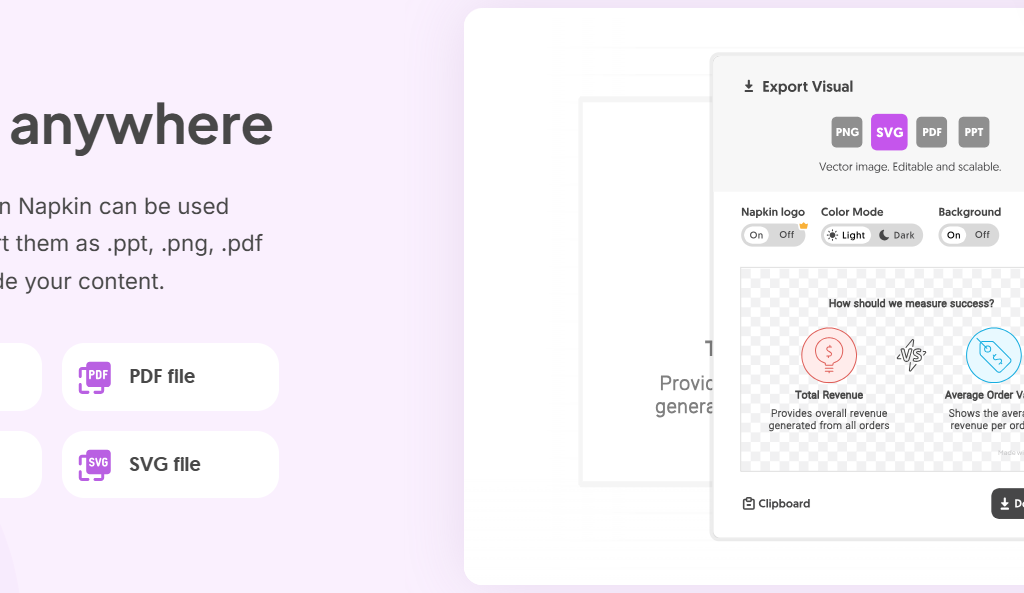
Napkin AI exports your finished visual as PNG, SVG, PDF, or an editable PPTX file. Here is how I choose the format depending on where the visual is going:
Format
Best for
Why I use it
PNG
LinkedIn posts, Instagram carousels, blog images
Universally supported, loads fast on every platform
SVG
Website graphics, anything that needs to scale without losing quality
Stays crisp on retina and large screens
PDF
Client reports, proposals, training handouts
Print-ready and easy to share securely
PPTX
Sales decks, webinar slides, Digital Scholar training material
Editable in PowerPoint, so my trainers can tweak it before class
Step 6: Collaborate and Share With Your Team
Click the share option inside your Napkin document.
Enter your teammates’ email addresses to invite them into the same workspace.
Use Teamspace to organise visuals by client or project, and use real-time editing when more than one person needs to work on the same diagram.
Use the built-in highlighter to leave comments directly on text or visuals at echoVME, this replaces half the back-and-forth we used to do over WhatsApp screenshots.
How I Actually Use Napkin AI Across My Business
A tool only earns a permanent place in my stack if it survives contact with real client work. Here is where Napkin AI has stuck.
1. At echoVME Digital – Client-facing deliverables
When my strategists submit a campaign report, the raw data and recommendations come first. Before that report goes to the client, we run the key sections through Napkin AI to generate a funnel diagram or a before-and-after comparison visual.
A client remembers a clean funnel graphic far longer than they remember a paragraph of analysis, even when the paragraph is what we are paid for.
2. At Digital Scholar – Training and curriculum
Teaching frameworks is the core of what we do at Digital Scholar. Concepts like the customer journey, the content funnel, or a campaign workflow are naturally sequential or hierarchical exactly the kind of structure Napkin AI converts into a diagram in seconds. Our trainers now draft the explanation first, then generate the supporting visual, instead of building slides from scratch for every cohort.
3. For BuzzFame and influencer marketing briefs
Influencer campaign briefs often need to communicate a content calendar, a tiered creator structure, or a deliverable timeline to a brand stakeholder who has five minutes to review it. A Napkin AI timeline or process diagram gets that approval faster than three more slides of text.
4. For my own content – LinkedIn and YouTube
Every long-form post I write on LinkedIn now gets one supporting visual pulled directly from the post itself. The visual is not designed separately, it comes from the same text, generated in the same sitting. That consistency between what I say and what I show is, in my experience, one of the simplest ways to lift saves and shares on a platform that increasingly rewards visual scannability.
Napkin AI vs. Canva vs. ChatGPT/Image Tools: Where Each One Fits
I get asked this question in almost every workshop, so let me settle it clearly.
Napkin AI
Canva
ChatGPT/Image AI
Core strength
Text-to-diagram logic
Brand templates and design control
Open-ended creative imagery
Speed for diagrams
Fastest: generated from your text directly
Slower: manual layout
Not built for structured diagrams
Brand control
Good, with custom styles
Best-in-class
Limited consistency
Best use case
Explaining ideas, frameworks, processes
Polished social creatives, brand decks
Hero images, illustrative art
My honest take: do not replace Canva with Napkin AI, and do not replace Napkin AI with Canva. Use Napkin AI to think and explain fast, and use Canva to polish the visuals that are going on your highest-stakes assets: a pitch deck cover, a paid ad creative, a brand campaign key visual.
My Pro Tips for Getting Better Output From Napkin AI
Write in clear, structured language before you generate. Napkin reads structure, not just words. If your text already has a logical sequence first, then, finally, the diagram it produces will be cleaner.
Highlight smaller chunks for sharper diagrams. Selecting one paragraph at a time usually produces a more focused visual than highlighting an entire page.
Regenerate before you settle. The first suggested diagram is rarely the best one. Use the spark icon again to see alternate layouts before you commit to customising one.
Build a brand style once, reuse it everywhere. Set your custom colours and fonts in your first project so every visual after that stays consistent without extra work.
Treat it as a first draft, not a final asset. For anything client-facing at a premium price point, run the export through a quick design review before it goes out the door.
Frequently Asked Questions About Napkin AI
Is Napkin AI free?
Yes. Napkin AI is currently free to use, including most Pro-tier features, while the product is in its open beta phase. Anthropic-style “free forever” promises rarely survive a product’s growth phase, so if you rely on it for client work, build your visuals with an eye on exporting and archiving them — pricing models tend to shift once a tool exits beta.
Is Napkin AI available in languages other than English?
The interface is currently in English, but you can generate visuals in 60-plus languages, and the diagram text will match the language of the source content you provide.
Can I use Napkin AI on mobile?
You can view shared Napkin documents on mobile, but account creation and full editing are currently desktop-only.
Does Napkin AI work for data-heavy charts, like sales numbers?
It is better suited to conceptual and process diagrams than to precise data visualisation. For revenue charts, funnel metrics, or anything that needs exact data accuracy, I still recommend a proper analytics or spreadsheet tool, and bring Napkin AI in for the narrative diagrams around that data.
Is my content safe if I paste client information into Napkin AI?
Treat any AI tool the way you would treat a new vendor: avoid pasting sensitive client data, confidential financials, or personally identifiable information until you have reviewed the tool’s current data policy. This applies to every AI tool I recommend, not just Napkin AI.
Can I use Napkin AI alongside Canva or Figma?
Absolutely. In fact, that is the workflow I recommend. Use Napkin AI to generate the structure and logic of your visual in minutes, then move it into Canva or Figma if you need deeper brand customisation, animations, or campaign-specific design elements. Think of Napkin AI as the fastest way to get from idea to first draft.
What kind of content works best with Napkin AI?
Napkin AI performs best with structured content such as processes, frameworks, checklists, timelines, comparisons, and step-by-step guides. The clearer the relationship between your ideas, the better the diagrams tend to be. If your content is one long paragraph without much structure, spend a minute organising it before generating a visual.
Can I use Napkin AI for client presentations and commercial projects?
Yes. The visuals you create can be used in client reports, presentations, training materials, blog posts, and marketing assets. As with any AI-powered platform, it is worth reviewing the latest licensing and terms of use if you are creating assets for commercial distribution or client deliverables.
Does Napkin AI replace presentation tools like PowerPoint?
Not really. Napkin AI is designed to create the visuals that go inside your presentation, not to replace presentation software altogether. I typically generate diagrams in Napkin AI, export them as editable PPTX files, and then incorporate them into a polished PowerPoint deck for clients or workshops.
How can I get the best results from Napkin AI?
Treat your input like a creative brief. Write in short, clear sentences, organise your ideas into logical sections, and generate one concept at a time rather than pasting an entire document. If the first diagram is not quite right, regenerate a few alternatives—I’ve found that the best visual often appears on the second or third attempt rather than the first.
Final Word From Sorav
I have tested a long list of AI tools on this channel, and most of them solve a problem you did not actually have. Napkin AI is different; it solves a problem every content team, agency, and trainer already has: turning approved text into a visual fast enough to keep up with a content calendar.
My advice is simple. Do not treat this as one more tool to “try someday.” Open it today, paste in your most recent blog post or client report, and generate your first diagram. The workflow only becomes obvious once you have built three or four visuals yourself exactly the way I teach every AI tool inside Digital Scholar’s classrooms.
If you found this breakdown useful, the full live walkthrough where I build these visuals on screen in real time is on my YouTube channel here:
About Sorav Jain
Sorav Jain is the Founder of echoVME Digital, a full-service digital marketing agency with 150-plus experts managing 300-plus brands including Bosch, Ramco, and Genpact, and Digital Scholar, an award-winning digital marketing training institute with campuses in Chennai and Mumbai. Over 300,000 students have trained under his programs, including India’s first 1-year MBA in Digital Marketing, launched in partnership with Woolf University. He is one of India’s highest-paid digital marketing consultants and was named AI Creator of 2025 by NDTV and Who’s Next 360.
About the Author
Sorav Jain
Sorav Jain is the Founder of Digital Scholar and echoVME, one of the world's top digital marketing influencers with 300,000+ students trained. He launched India’s best MBA in Digital Marketing programs, and runs Digital Scholar, with campuses in Chennai and Mumbai and online courses. He has been featured by BuzzSumo, Social Samosa, and Global Youth Marketing Forum and worked with Amazon, Meta, Bosch, Ramco, and more as an influencer. Also, one of the highest paid digital marketing consultants in India.
Ready to Transform Your Career or Business?
Join Digital Scholar’s next batch and learn the exact strategies that helped Paras and thousands of others succeed in digital marketing.