By Sorav Jain – Founder, echoVME Digital & Digital Scholar | AI Digital Marketing Consultant & Trainer
In 18-plus years of building echoVME Digital and training over 300,000 students at Digital Scholar, I have used a lot of AI tools that promised to “save me hours.” Most of them save minutes. NotebookLM is one of the rare ones that actually delivers on the bigger promise and the reason is simple: it does not make things up the way a regular chatbot does.
I recorded a full hands-on walkthrough of this tool for my YouTube channel, and this article is the written companion to that session, structured the way I teach it inside our Digital Scholar classrooms. If you prefer to watch me build a notebook live, the original tutorial is here: Ultimate NotebookLM Tutorial on YouTube.
By the end of this guide, you will know exactly how I use NotebookLM to turn long client research, competitor audits, and training material into structured, source-cited outputs and where it genuinely outperforms ChatGPT and Gemini for research-heavy marketing work.
Table of Contents
What Is NotebookLM and Why I Trust It More Than a Regular Chatbot
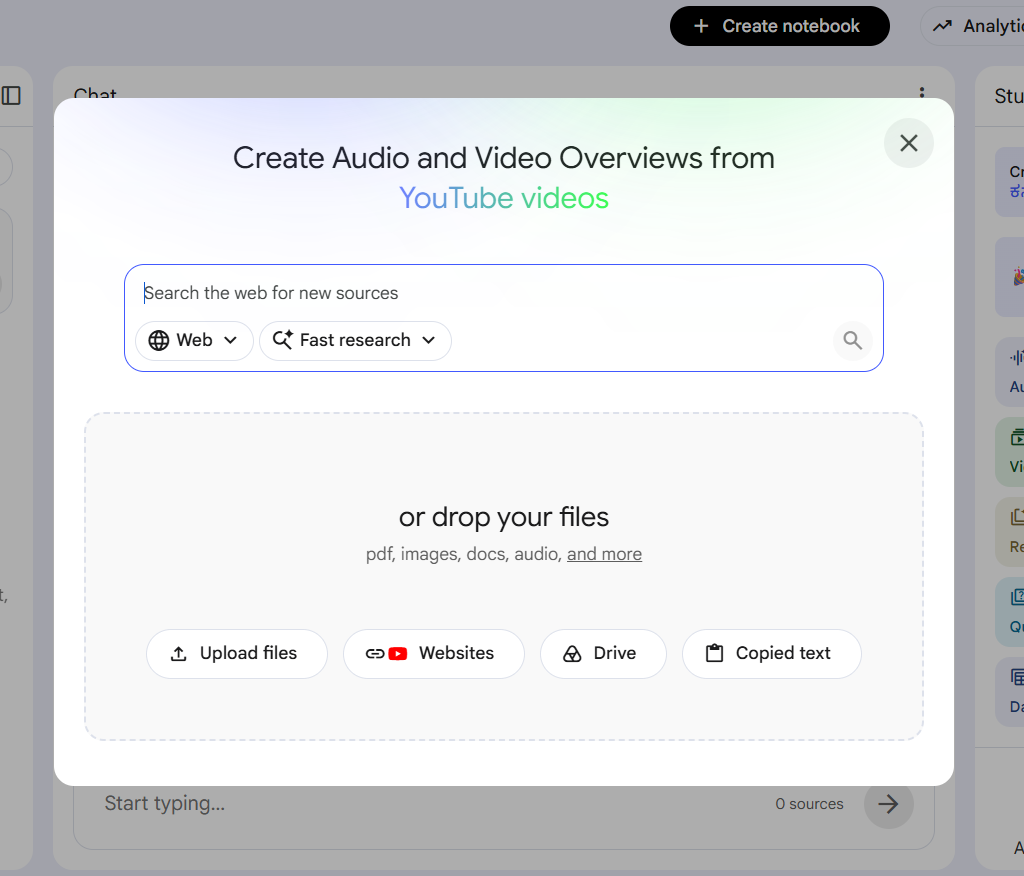
NotebookLM is Google’s free, Gemini-powered research assistant. The single feature that separates it from every other AI tool in my stack is source grounding. You upload your own documents PDFs, Google Docs, slide decks, websites, even YouTube video transcripts and NotebookLM answers questions using only that material, with an inline citation next to every claim so you can click straight back to the original sentence.
A regular chatbot answers from its general training data, which is powerful but unverifiable. NotebookLM deliberately ignores its own broad knowledge and restricts itself to what you fed it. For an agency owner who has to defend every claim in a client report, that distinction is not a technicality, it is the entire reason I trust this tool with real client work.
“Clarity, consistency, and context that is what separates creators and marketers who last from the ones chasing every trend.” This is something I say in almost every AI training session, and NotebookLM is built around exactly that philosophy: it does not chase the open internet, it grounds itself in the context you give it.
A single notebook can absorb roughly 25 million words across up to 50 sources, with each source holding up to 500,000 words. That means I can drop an entire client’s brand guidelines, last year’s campaign reports, competitor analysis, and a stack of research PDFs into one notebook and query all of it together something that would take my team days to manually cross-reference.
Where NotebookLM Fits in a Marketer’s Toolkit (and Where It Does Not)
Where it wins
Synthesising long, messy research competitor audits, market reports, client briefs into one source-cited summary
Turning training material into study aids: briefing docs, FAQs, flashcards, and quizzes for Digital Scholar cohorts
Converting dense reports into Audio Overviews your team can listen to during a commute instead of reading a 40-page PDF
Building Video Overviews and Slide Decks directly from source material for internal reviews or client walkthroughs
Cross-referencing multiple YouTube competitor videos, articles, and PDFs in a single research pass
Where I still reach for a different tool
Open-ended creative writing and brainstorming: NotebookLM is intentionally less creative than Gemini or ChatGPT because it stays grounded in your sources rather than generating freely
Anything that needs the latest live information from the open web beyond what you have uploaded
Polished, final-draft copywriting: I use NotebookLM to research and structure, then hand the synthesis to a writer or a generative tool for tone and creative polish
My rule for the team at echoVME: use NotebookLM to understand and organise, use a creative AI tool to write and design. Mixing up that order is where most people get disappointed by either tool.
The Complete NotebookLM Tutorial: Step by Step
This is the exact workflow I demonstrate in the video, broken down the way I would teach it on day one of a Digital Scholar AI module.
Step 1: Create Your First Notebook
Go to notebooklm.google and sign in with any free Google account no separate signup is required.
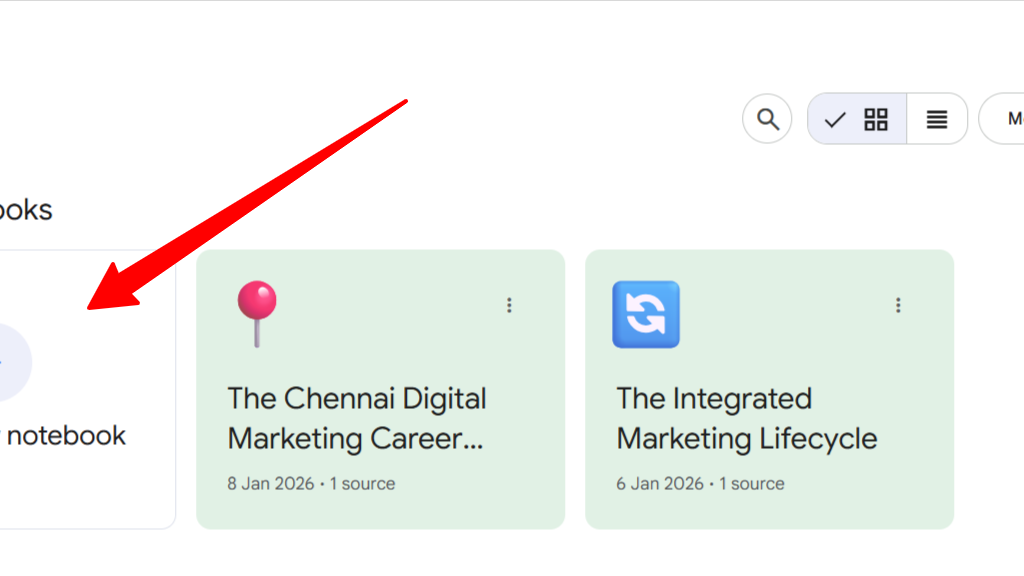
Click “Create New Notebook” from your dashboard.
Give it a clear, specific title immediately. I keep one notebook per client or per project — never one giant notebook for everything, because a tight, focused source set produces sharper answers than a sprawling one.
Step 2: Add Your Sources
This step is where most of NotebookLM’s value gets created or lost. The quality of your output is a direct function of the quality of what you upload.
Supported formats: PDFs, Google Docs, Google Slides, plain text, Markdown, audio and video files, EPUB files for long-form books, and direct website links.
YouTube videos: Paste the link of any public YouTube video and NotebookLM pulls the transcript as a source incredibly useful for pulling insights out of long competitor webinars or industry talks without watching the whole thing.
Limits to know: Up to 50 sources per notebook, roughly 500,000 words per individual source, and a combined capacity of around 25 million words per notebook.
My advice: upload your most important, most reliable sources first. The model appears to weight earlier, higher-quality sources more heavily, so do not lead with a low-quality blog post when you have the original report sitting in the same folder.
Step 3: Let NotebookLM Summarise and Orient You
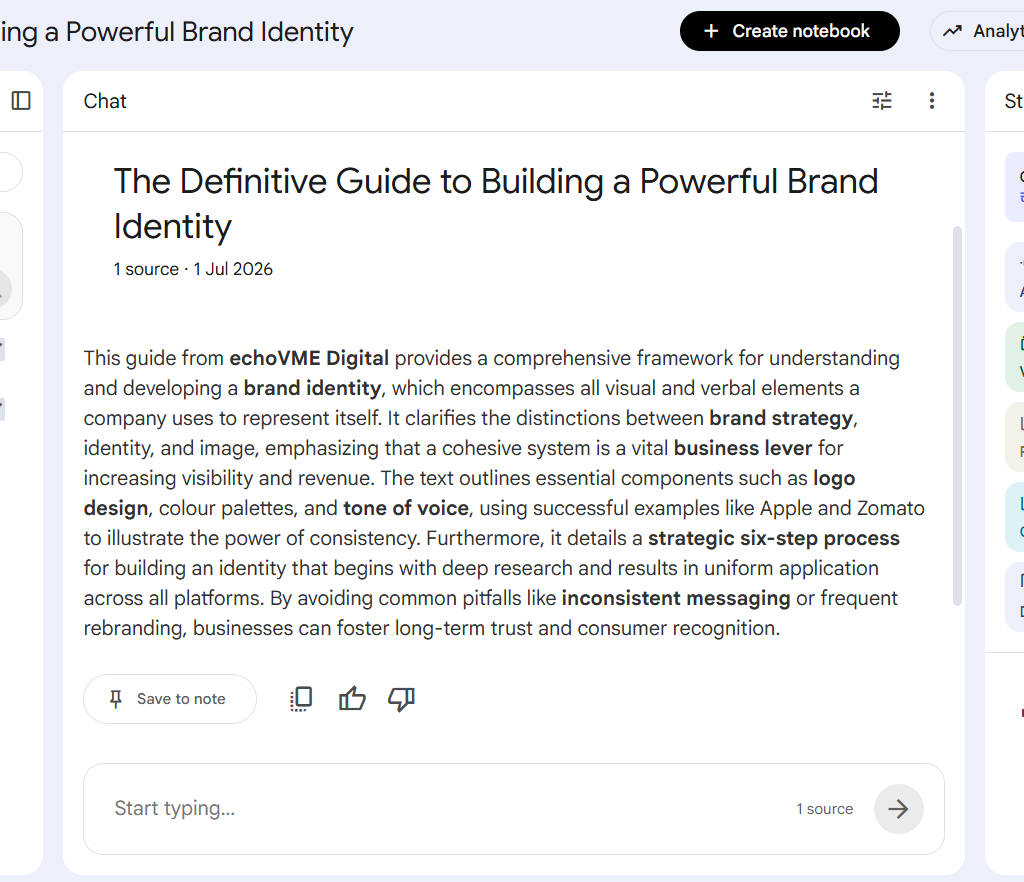
Once your sources are uploaded, NotebookLM automatically generates a summary and identifies the key topics across all of them.
Open the “Notebook Guide” for a quick-start view: source summaries, suggested questions, and ready-made templates like FAQs and briefing documents.
Use this orientation step before you start asking detailed questions it tells you, at a glance, whether your source set actually covers what you need.
Step 4: Chat With Your Sources
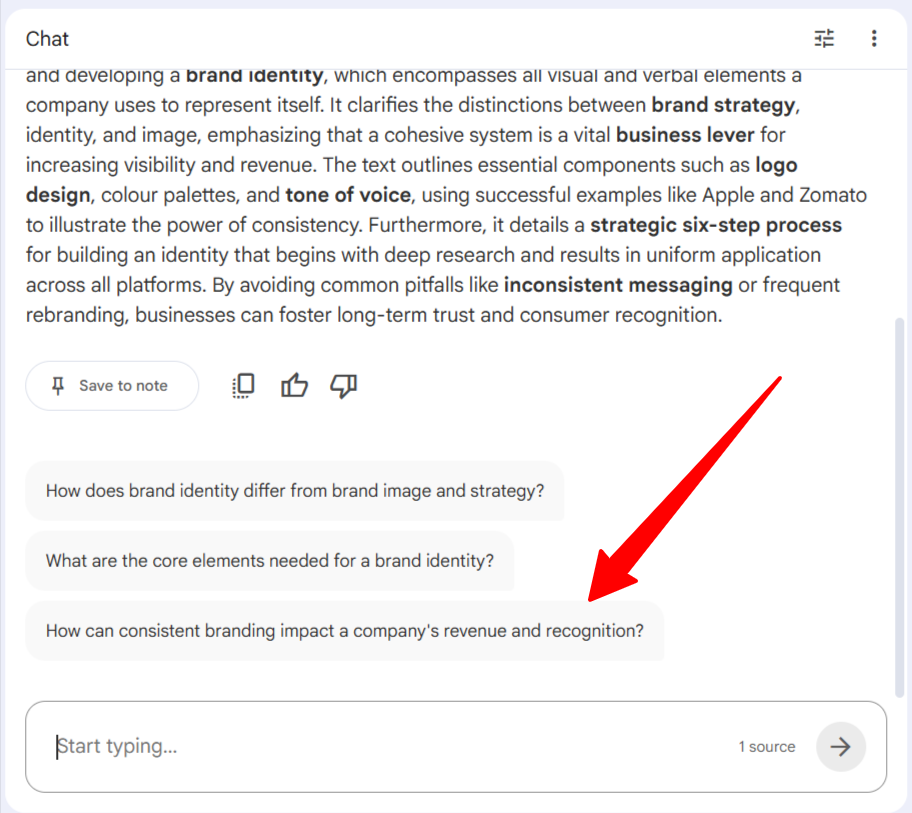
Ask a direct question in the chat panel, for example, “What are the three biggest gaps in our competitor’s content strategy based on these reports?”
Read the answer alongside its inline citations. Every claim links back to the specific source and passage it came from.
Click the citation before you trust a surprising or important answer. This single habit is the biggest reliability upgrade you can build into how your team uses AI.
Save any response you want to keep as a “Note” chat responses are not saved automatically, and notes can later be combined into a new standalone source document.
Step 5: Generate Studio Outputs
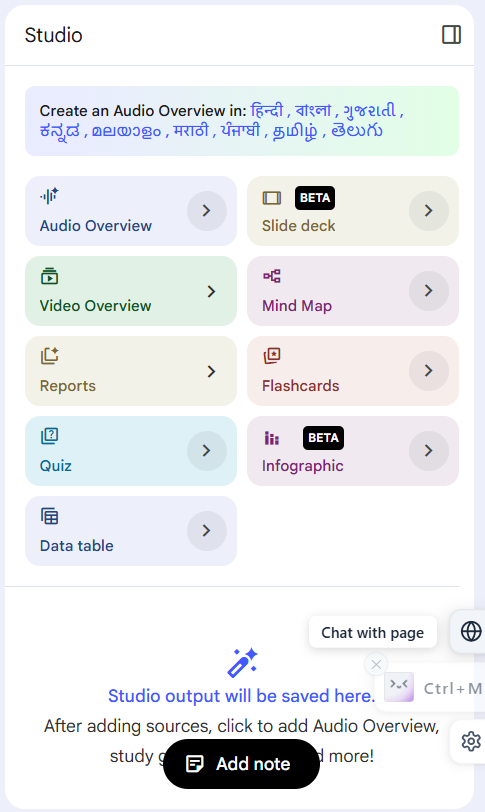
This is the feature set that makes NotebookLM genuinely useful for a content team, not just a researcher. Everything here is generated directly from your sources, with the same grounding and citation discipline as the chat.
Studio output
What it does
How I use it
Audio Overview
A podcast-style discussion of your sources, in Deep Dive, Brief, Critique, or Debate format
Team listens to a client report during commute instead of reading a 40-page PDF
Video Overview
A narrated, animated walkthrough of your source material, including a Cinematic mode
Quick internal briefings without building a slide deck from scratch
Slide Deck
An auto-generated presentation, exportable to PPTX and editable afterward
First-draft client decks that my strategists then polish
Infographic
A visual summary in styles like Professional, Editorial, or Bento Grid
LinkedIn and Instagram visuals built straight from research
Briefing Doc / Study Guide / FAQ
Structured written summaries, key points, and Q&A pulled from sources
Onboarding new hires and prepping Digital Scholar training material
Flashcards & Quizzes
Interactive recall tools generated from your notebook, with saved progress
Helping students retest themselves on course modules
Data Table
Structured tabular extraction of facts and figures across sources
Pulling comparable metrics out of multiple competitor reports at once
Step 6: Refine and Customise Every Output
Add custom instructions. Before generating, tell NotebookLM who the output is for and what to focus on: “summarise this for a CMO who has two minutes” produces a very different result than a generic prompt.
Revise instead of regenerating from scratch. Slide Decks and other Studio outputs can now be revised with direct feedback: “make slide 3 more concise” without losing the rest of the deck.
Set length and language. Audio Overviews support Shorter, Default, or Longer settings and more than 80 languages, which matters when I am producing the same brief for English and regional-language audiences.
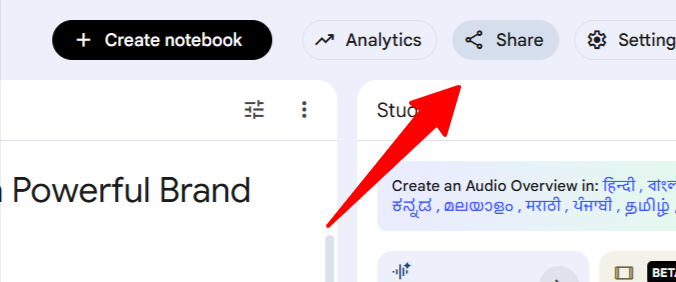
Step 7: Collaborate and Share
Notebooks can be shared with teammates so multiple people can query the same source set.
Conversation history is now automatically saved and private to each user, so you can close a session and pick it back up later without losing context.
In shared notebooks, your own chat history stays visible only to you, which keeps individual research threads from cluttering a shared workspace.
How I Actually Use NotebookLM Across My Business
1. At echoVME Digital – Client research and reporting
Before any new client kickoff, my strategists drop the brand’s existing reports, competitor websites, and category research into one notebook. What used to take a researcher two full days to synthesise into a brief now takes a focused afternoon, with every claim in the final report traceable back to its source which matters enormously when a client questions a recommendation in a review meeting.
2. At Digital Scholar – Building training material
Course material has to stay accurate and up to date across multiple trainers and three campuses. I use NotebookLM to turn long-form curriculum documents into briefing docs, FAQs, and quizzes that every trainer can pull from consistently, instead of each trainer building their own version of the same explainer slide.
3. For competitor and trend research
I regularly drop competitor YouTube videos, industry reports, and recent articles into a single notebook before recording new content. Asking that notebook “what are the three biggest gaps in how my competitors are explaining this topic” gives me a sharper, source-backed starting point than scrolling through ten open browser tabs.
4. For my own content and public talks
When I am preparing for a keynote or a podcast appearance, I load my own past talks, articles, and the host’s previous episodes into a notebook, then generate a briefing doc. It keeps my talking points consistent with what I have said publicly before, and the Audio Overview format lets me review the synthesis on the drive to the venue.
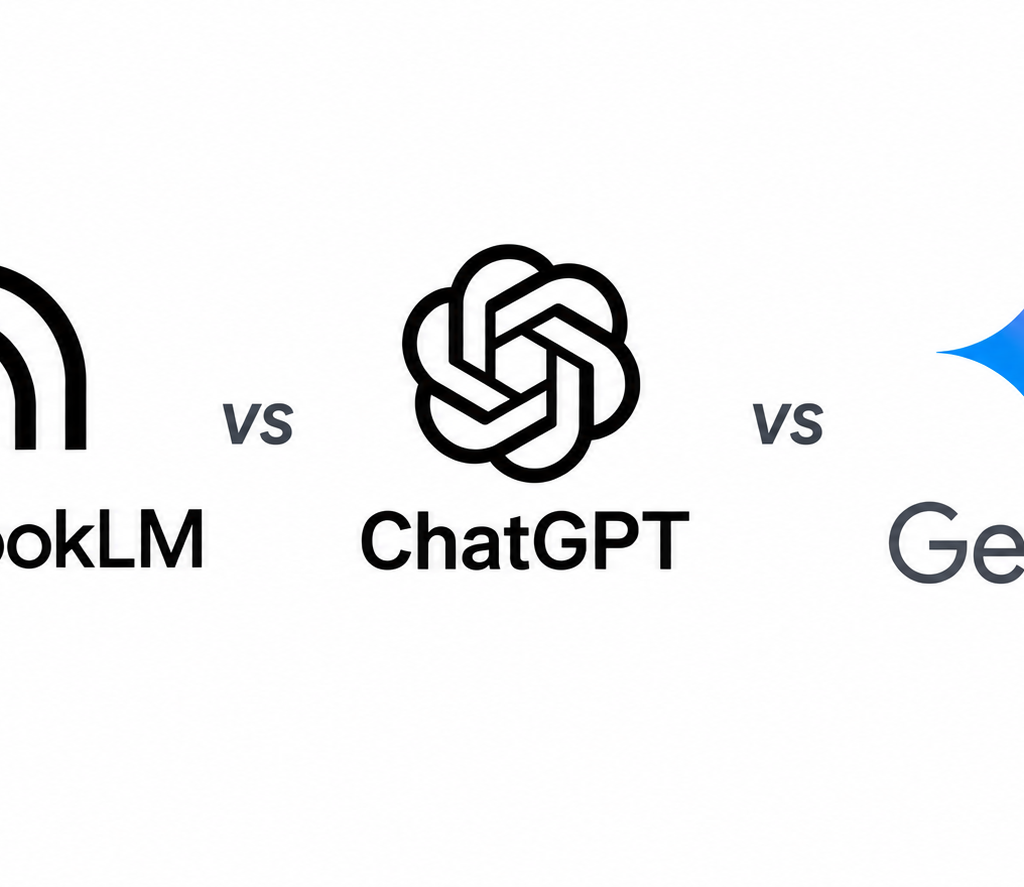
NotebookLM vs. ChatGPT vs. Gemini: Where Each One Fits
This is the most common question I get in workshops once people see NotebookLM live, so let me be direct about it.
NotebookLM
ChatGPT
Gemini
Core strength
Source-grounded research with citations
General-purpose writing and broad knowledge
Multimodal, broad creative and reasoning tasks
Accuracy on your docs
Highest answers only from what you upload
Can blend in outside training data
Can blend in outside training data
Creativity
Deliberately restrained
Strong
Strong
Best use case
Research synthesis, study guides, audio/video overviews
Drafting, ideation, broad Q&A
Cross-app tasks, multimodal generation
My honest take: NotebookLM is not trying to replace ChatGPT or Gemini, and you should not ask it to. Use NotebookLM when being wrong is expensive and traceability matters client reports, research synthesis, training material. Use ChatGPT or Gemini for the open-ended writing and ideation that comes after.
My Pro Tips for Getting Better Output From NotebookLM
Keep notebooks topic-focused. One notebook per client or per project beats one giant notebook for everything; a tight source set produces sharper, more relevant answers.
Lead with your best sources. Upload your most reliable, highest-quality documents first; source quality drives output quality more than anything else in this tool.
Always verify the citation on surprising answers. It takes two seconds to click through, and it is the single biggest trust-builder when you hand this work to a client or a student.
Use custom instructions on every Studio output. Tell it the audience and the goal before generating, rather than accepting the generic default version.
Save anything you want to keep as a Note. Chat responses disappear once the session resets unless you explicitly save them, so build this into your workflow from the first session.
Frequently Asked Questions About NotebookLM
1. What exactly is NotebookLM, and how is it different from a regular AI chatbot?
NotebookLM is Google’s free, Gemini-powered research assistant, built specifically to work with your own documents rather than the open internet. The key difference from a regular chatbot is source grounding: instead of pulling answers from its broad training data, NotebookLM restricts itself almost entirely to the sources you upload PDFs, Google Docs, websites, audio, video, and even YouTube transcripts. Every response comes with inline citations linking back to the exact sentence or passage it was drawn from, which means you can verify any claim in seconds. This makes it fundamentally a research and synthesis tool rather than a general creative assistant.
2. Is NotebookLM free to use, and what do the paid plans add?
Yes, NotebookLM has a genuinely useful free tier that includes access to core Studio features such as Audio Overviews, Video Overviews, Slide Decks, Infographics, and chat with citations, though it comes with daily and monthly usage limits, including a cap on how many audio summaries you can generate per day. For individuals and teams who outgrow those limits, Google offers paid tiers of NotebookLM Plus, bundled into the Google One AI Premium plan which raise the daily chat limits, expand notebook and source storage, and unlock features like Deep Research sooner. For most marketers and students starting out, the free tier is more than enough to test the workflow properly.
3. What types of sources can I upload into a NotebookLM notebook?
NotebookLM accepts a wide range of source types: PDFs, Google Docs, Google Slides, plain text and Markdown files, audio and video files, EPUB ebooks, and direct links to websites. It can also pull the transcript from any public YouTube video simply by pasting the link, which is one of the most underused features for marketers doing competitor or trend research. A single notebook supports up to 50 sources, each capable of holding roughly 500,000 words, with a combined notebook capacity of around 25 million words. That is enough to hold an entire client’s brand history, past campaign reports, and a stack of competitor research in one place. The one limitation to plan around is that everything must be a static document or transcript NotebookLM does not connect to live, constantly updating data feeds.
4. How accurate is NotebookLM, and can it still make mistakes?
NotebookLM is significantly more accurate than a general chatbot when it comes to staying faithful to your source material, because it uses retrieval-augmented generation to ground every answer in the documents you provide rather than freely generating from memory. That said, Google itself is clear that NotebookLM can still produce inaccuracies, and the responsible habit is to treat the inline citations as your verification tool, not as a guarantee.
5. What is an Audio Overview, and why did it make NotebookLM go viral?
Audio Overview is the feature that first made NotebookLM a mainstream talking point: it converts your uploaded sources into a natural-sounding, podcast-style discussion between two AI hosts who summarise, debate, and explain the material conversationally. As of the 2026 feature set, it ships in four formats Deep Dive, a default two-host conversation; Brief, a single speaker covering key points in under two minutes; Critique, two hosts evaluating a piece of work like an essay or a design doc; and Debate, a structured back-and-forth on a topic. You can also adjust the length and steer the focus with a custom prompt, and the feature now supports more than 80 languages. I use this constantly to let my team absorb long client reports during a commute instead of needing to sit down and read a 40-page document.
6. Can NotebookLM generate slides, infographics, and videos, not just text and audio?
Yes, and this is where NotebookLM evolved well beyond a simple summarisation tool. The Studio panel can generate Slide Decks directly from your sources, exportable as PPTX and editable afterward, with the option to revise individual slides through direct feedback. It can also generate Infographics in ten or more predefined visual styles including Professional, Editorial, Sketch Note, and Bento Grid powered by Google’s Nano Banana Pro image model. Video Overviews go a step further, producing a narrated, animated walkthrough of your material, with a more immersive Cinematic mode available on higher-tier plans. All of these outputs stay grounded in your original sources the same way chat answers do, which is what makes them genuinely usable for client-facing decks rather than generic AI-generated filler.
7. Is NotebookLM good for students, or is it mainly built for business research?
NotebookLM has strong, purpose-built features for students, alongside its research and business use cases. You can generate flashcards and quizzes directly from your notes or course material, with progress automatically saved across sessions and the ability to mark cards as understood or missed. The Learning Guide feature acts as a form of personalised tutoring within the notebook, helping you work through a subject rather than just handing you an answer. Educators can also build notebooks from class material and assign them directly through tools like Google Classroom and Canvas by Instructure.
8. Is my data safe if I upload client documents or confidential research into NotebookLM?
Google states that NotebookLM does not use your uploaded content to train its general-purpose generative AI models unless you explicitly submit feedback, and for Google Workspace users, uploads, queries, and responses are excluded from model training entirely, even with feedback submitted. NotebookLM also does not share your data with third parties. That said, my standing advice for any AI tool, including this one, is to treat it the way you would treat a new vendor: review the current data and retention policy yourself before uploading anything truly sensitive, such as unreleased financials or personally identifiable client information, and prefer a Workspace account over a personal one for client-facing agency work.
9. How is NotebookLM different from Napkin AI, since both are AI visual and content tools?
The two tools solve different problems and sit in different parts of my workflow. Napkin AI takes text you already have and converts it into a single diagram or visual in seconds its job is fast, structured visualisation of one idea. NotebookLM takes a large body of source material multiple documents, videos, and reports and helps you research, understand, and synthesise across all of it, then optionally turns that synthesis into a slide deck, infographic, audio overview, or video.
10. What is the single biggest mistake people make when they start using NotebookLM?
The most common mistake I see, both in my training sessions and among my own team when they first start, is dumping everything into one giant, unfocused notebook and expecting sharp answers out of it. NotebookLM performs best with a tight, intentional source set built around one client, one topic, or one project, not a catch-all dumping ground for every document you own. The second most common mistake is treating the chat responses as automatically saved; they are not, so anything you want to keep has to be explicitly saved as a Note before you close the session. The third is skipping the citation check on important answers, which defeats the entire point of using a source-grounded tool in the first place. Fix these three habits and most of the disappointment people report with this tool disappears.
Final Word From Sorav
Most AI tools I test get added to a list. NotebookLM got added to my actual workflow, alongside the team at echoVME and the curriculum we teach at Digital Scholar. The reason is not novelty it is trust. In a year where every brand and every student is drowning in information, a tool that organises that information and shows its work is worth more than another tool that writes faster but cannot tell you where its answer came from.
My advice is the same advice I give in every AI workshop: do not read about this tool, use it. Take one real document you are working with this week, a client report, a set of lecture notes, a competitor teardown upload it into a fresh notebook, and ask it the one question you actually need answered. The workflow becomes obvious the moment you see your own work synthesised back to you with a citation attached.
If you want to see this entire process built live on screen, the full walkthrough is on my YouTube channel here:
About the Author
Sorav Jain
Sorav Jain is the Founder of Digital Scholar and echoVME, one of the world's top digital marketing influencers with 300,000+ students trained. He launched India’s best MBA in Digital Marketing programs, and runs Digital Scholar, with campuses in Chennai and Mumbai and online courses. He has been featured by BuzzSumo, Social Samosa, and Global Youth Marketing Forum and worked with Amazon, Meta, Bosch, Ramco, and more as an influencer. Also, one of the highest paid digital marketing consultants in India.
Ready to Transform Your Career or Business?
Join Digital Scholar’s next batch and learn the exact strategies that helped Paras and thousands of others succeed in digital marketing.